Connect Using Microsoft Entra ID
This feature is available to our Enterprise customers only
If you sign in to Azure DevOps with Microsoft Entra ID you can link your repository with Appflow to push code automatically.
Prerequisites
In order to enable the integration with Appflow, you will need an existing repository on Azure DevOps.
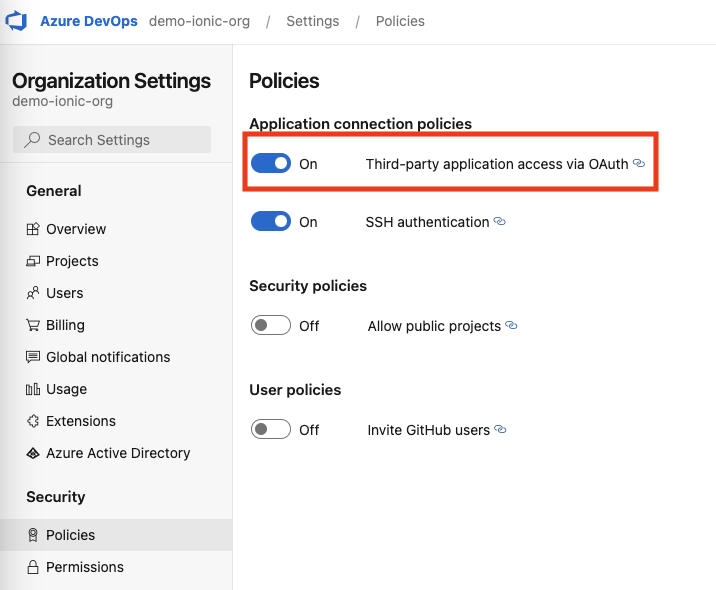
You must also ensure third-party OAuth access is enabled for your organization. Navigate to your Azure DevOps organization settings, select Policies in the Security menu and enable Third-party application access via OAuth.
Setting up the Integration
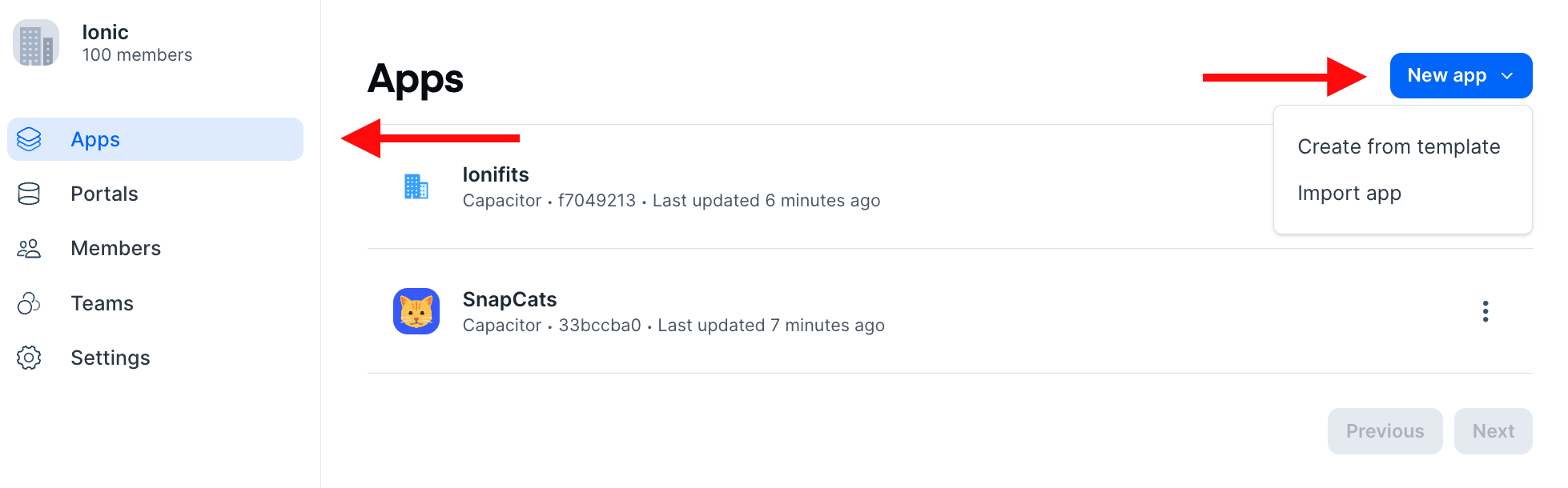
In the Appflow Dashboard, navigate to the Apps page and click the New app button, then choose the Import app option from the dropdown.
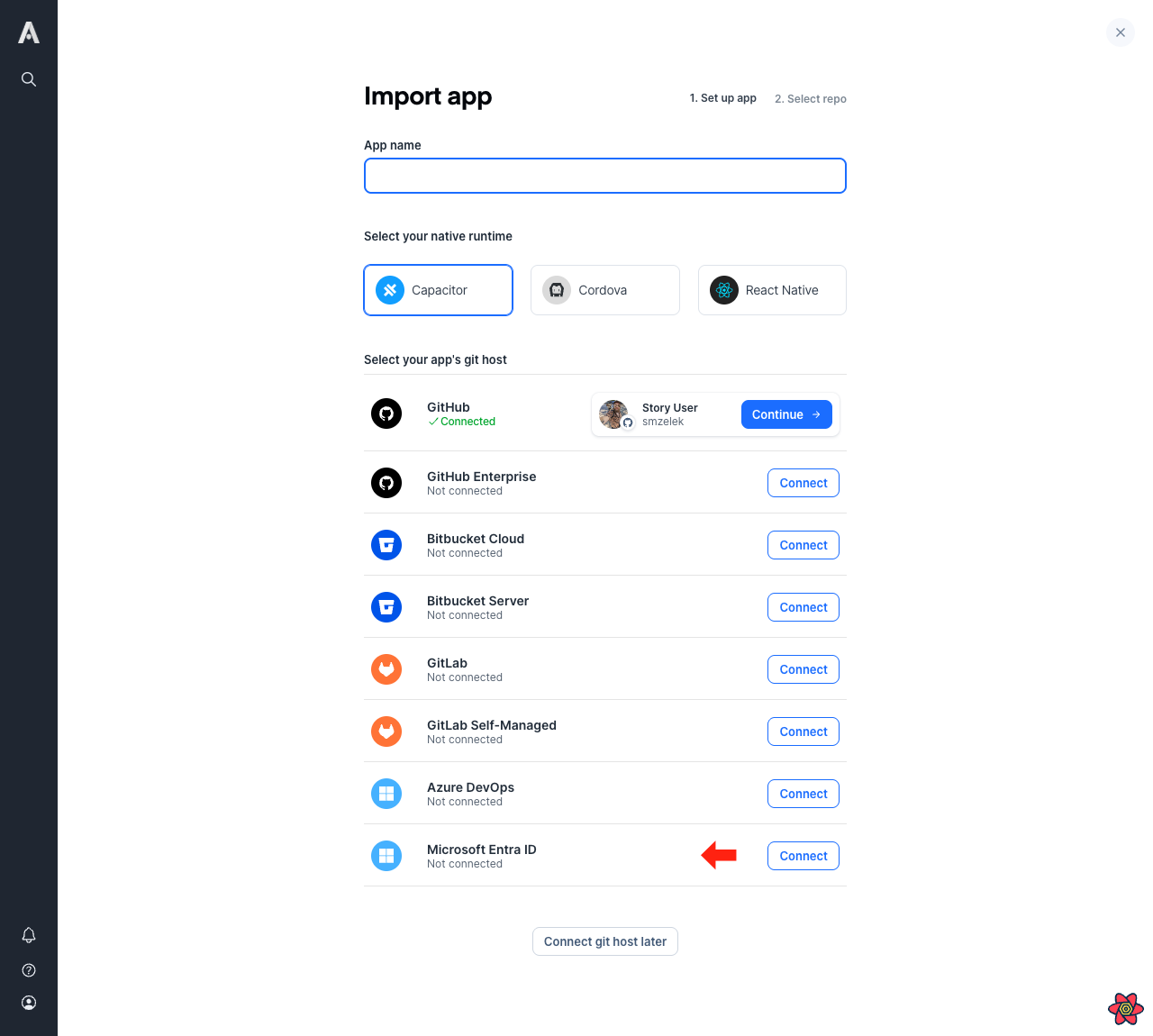
Fill out the form and click the Connect button next to the Microsoft Entra ID integration. If you have already connected the
integration before, you will click the Continue button next to your connected account. Otherwise you'll be asked to sign
in with your Microsoft account and approve access. Then you can choose the repository to link from the list of available repos.
When you link the repository a webhook will be created for the repository and events will be sent to Appflow so that we have access to any commits you push to your repository.
Connecting an Existing App
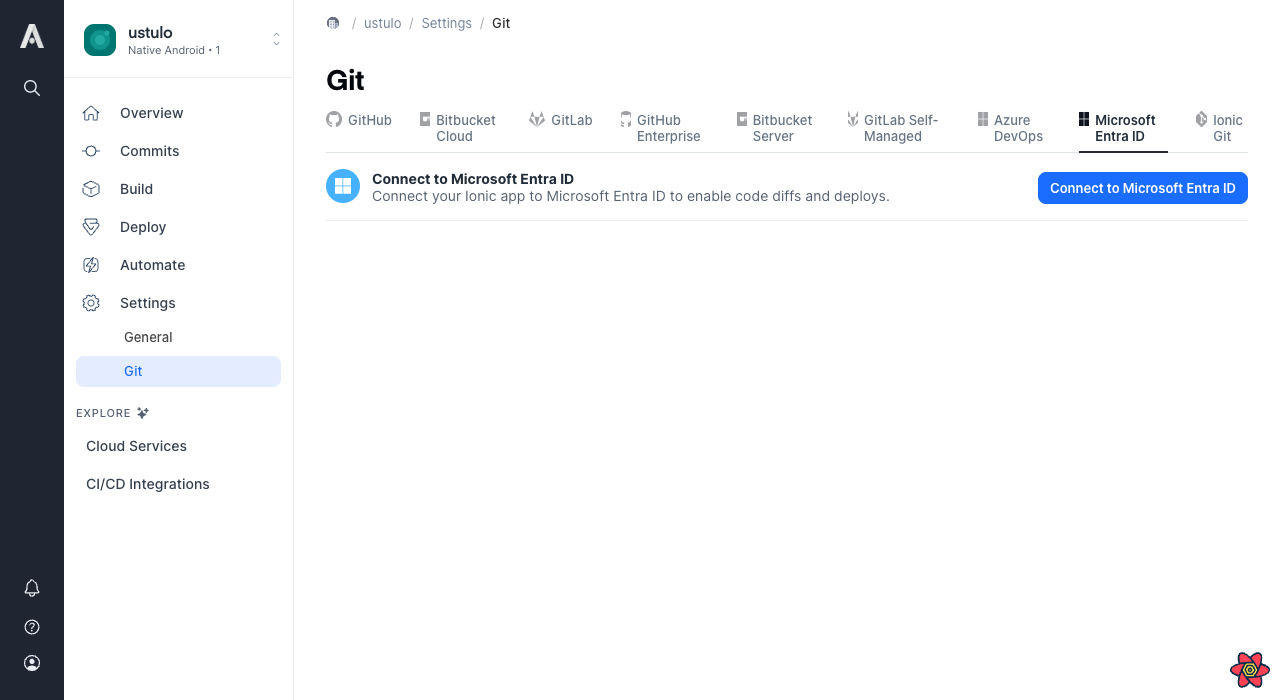
If your app is already created, open the app's Settings, select Git and then the Microsoft Entra ID tab. Click
Connect to Microsoft Entra ID and follow the same steps to choose a repository.
You can review and disconnect the connection at any time from your user Settings under Integrations.